How to Automate Your Project Workflow So Work Keeps Moving
You open your project tool on a Monday morning and nothing has moved since Thursday. A task has been sitting in "In Review" for four days because nobody knew it was ready. Another one slid past its due date quietly, and you only found out when the client asked about it. So you do what you always do: you message three people, update five cards by hand, and spend the first hour of your week being the reminder system for your own business. The tool was supposed to keep everyone on track... but right now, you're the one keeping the tool on track.
This is Part 3, the final part of our series on making your business run without you, one automation at a time. We've automated the front door and the money. Today we're automating the work itself: how tasks get handed off, who knows when something is ready for review, and what happens before a deadline slips. As always, there's a Hands-Free Starter if tools and automation are new to you, and an Invest & Scale option if you're ready to put real tools to work.
Before you build: agree on your stages
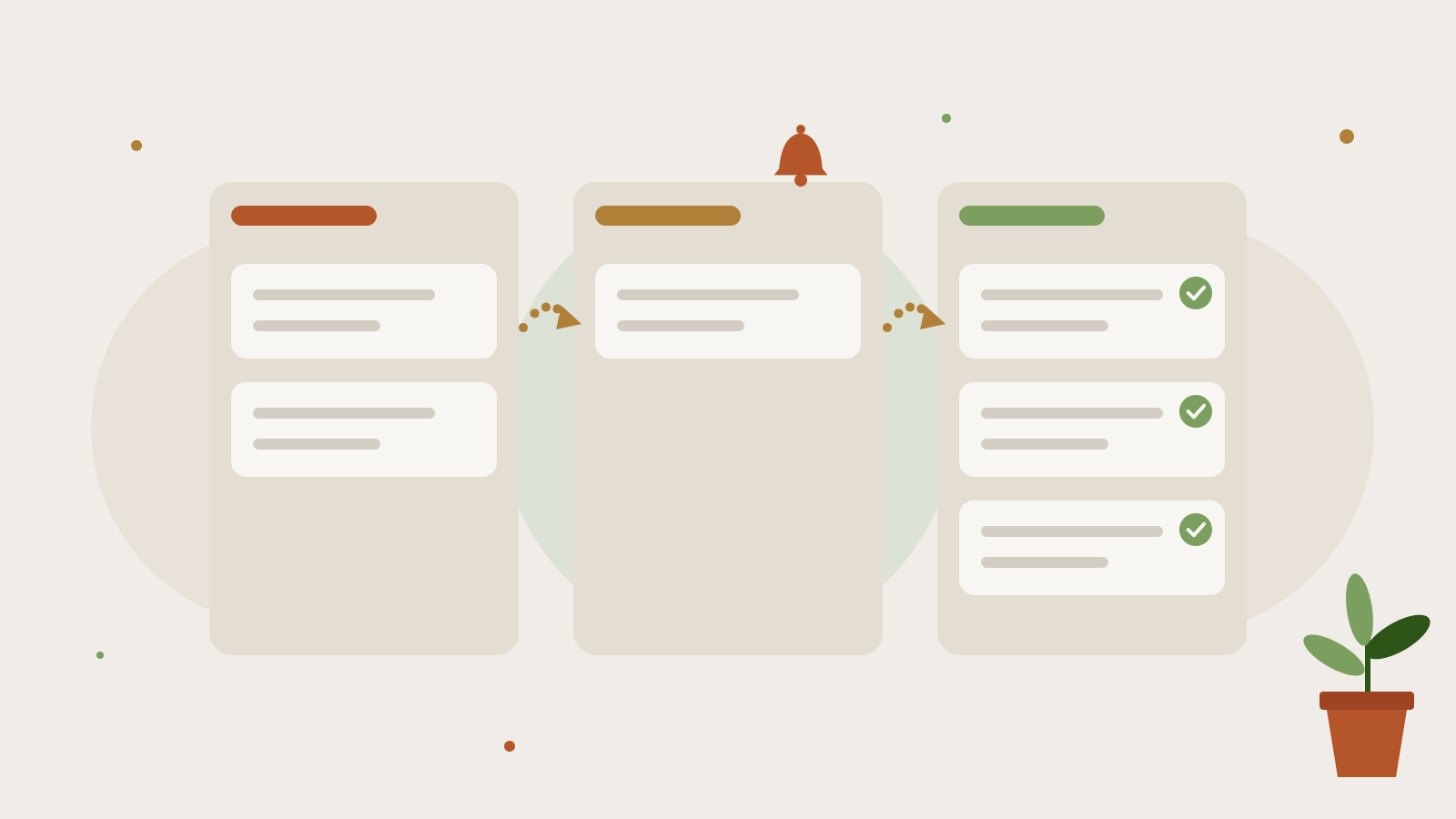
Your automations will only be as clear as your stages. Pick a simple set and use it on every project, for example:
To Do: not started yet.
In Progress: someone is actively working on it.
In Review: done and waiting for a check, from you or the client.
Done: approved and finished.
If your team already has stages that work, keep them. The point is that everyone agrees what each one means, because every automation below runs off a task moving from one stage to the next. You can map your own stages in the free Automation Starter Kit, linked at the end of this post.
Automation 5: Task moves → the right person knows
Trigger: a task moves to a new stage. Action: the right person is added, a due date is set, and nobody has to send a "this is ready" message.
The Hands-Free Starter (Trello)
You'll need: a free Trello account. The free plan includes 250 automation runs per month for your workspace, which is plenty for a small team.
Set up your board. Create one list for each stage: To Do, In Progress, In Review, and Done.
Open the automation builder. Click the Automation (lightning) button at the top of your board, choose the rule type, and select Create automation.
Build your "ready for review" rule. For the trigger, choose the option for when a card is moved into a list, and pick In Review. For the actions, add the reviewer (usually you) to the card and set the due date a couple of days out. Click Save.
Build your "done" rule. Create a second rule for when a card is moved into Done, and add an action that marks the due date complete.
Test it. Move a card into In Review and check that the right person and due date are added.
Invest & Scale (ClickUp)
You'll need: ClickUp. Automations work on every plan, including Free Forever (5 active automations and 100 automation actions per month). The Unlimited plan gives you 500 active automations and 1,000 actions per month.
Set your statuses. In your project List, set statuses that match your stages. We use To Do, In Progress, Internal Review, Client Review, and Done.
Open Automate. Click Automate (the little robot icon) in your List, then Create Automation.
Hand off reviews automatically. Choose the trigger Status changes, set it to Internal Review, and add the actions Change assignees (to your reviewer), Change due date (a couple of days out), and Add a comment ("Ready for your review"). Click Create.
Start every task the same way. Add a second automation with the trigger Task or subtask created and the action Apply template, using a task template that holds your standard checklist.
Close the loop. Add a third automation with the trigger Subtasks resolved and the action Change status to Internal Review, so finished work moves forward on its own.
Check your usage. Each automation can hold up to six actions, and the actions count toward your monthly limit, so keep an eye on usage in your first month.
Automation 6: Due date close → a nudge, not a surprise
Trigger: a deadline is coming up. Action: the person responsible gets a reminder, and you find out before the client does.
The Hands-Free Starter (Trello)
Open the automation builder again and look for the due date options.
Create a due date rule. Set it to run when a card is due soon (for example, one day before), and add an action that comments on the card and mentions the members on it.
Save and test it on a card with tomorrow's date.
Invest & Scale (ClickUp)
Click Automate → Create Automation in your List.
Choose the trigger Due date arrives and add the action Add a comment that mentions the assignee.
Click Create, then test it on a task due today.
Want a heads-up for yourself too? Use Change assignees in the same automation to add yourself, so overdue work lands on your radar without you checking every list.
What still needs you
Automation keeps the work moving, but it can't decide what matters most this week or have the honest conversation when a project is off track. It also can't replace the weekly update your clients look forward to. What it does is give you back the hour you were spending as everyone's reminder, so you can spend it on the work and the people that need you.
Where to start (and where to go from here)
If reviews keep getting stuck, start with Automation 5. If deadlines keep surprising you, start with Automation 6. And if you've followed the whole series, you now have six automations you can build at your own pace: inquiries, onboarding, invoices, offboarding, hand-offs, and deadlines. Pick the one that would give you the most time back, build it this week, and come back for the next one when it's running smoothly. There's no prize for automating everything at once... the goal is a business that gives you your time back, one automation at a time.
Get the free Automation Starter Kit. It includes the Automation Map to plan your triggers and actions, plus copy-and-paste templates to help you set up the workflow automations in this post. Get your free kit.
From our founder:
Sign up for our newsletter! It's where I share the stuff that doesn't make it to the blog. You'll get the real behind-the-scenes, the lessons before they're polished into a post, and the news you'll hear from me first. Every once in a while, I'll drop a perk or a freebie in there before anywhere else. If that sounds like your kind of insider access, join the newsletter.



How to Make Your Business Run Without You, One Automation at a Time
Wildiah Edouard Published on: 19/10/2026Make your business run without you, one automation at a time. A free 3-part series of step-by-step automations you can set up yourself.